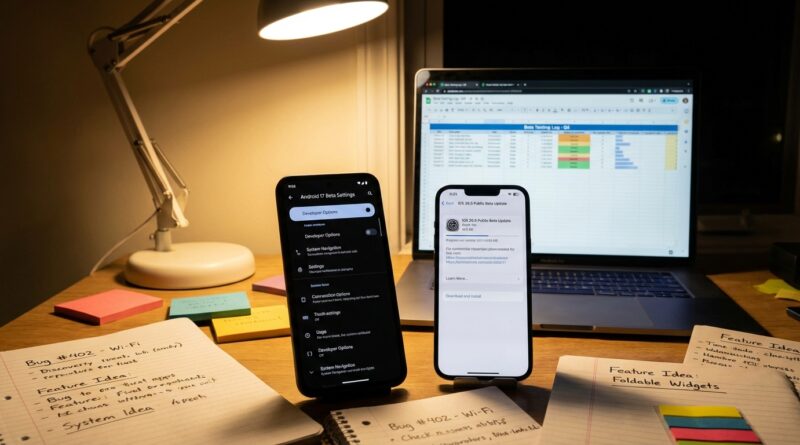
Tonight’s OS Power Play: How To Turn Android 17 & iOS 26.5 Public Betas Into Your Private Feature Lab
You know how this usually goes. A beta pops up on your phone, you tap install, a few icons move around, battery life gets weird for two days, and that is the end of the story. That is frustrating, because early software access should give you more than bragging rights. If you are installing Android 17 beta or iOS 26.5 public beta right now, you have a chance to turn that update into a private test lab. That means spotting the useful stuff first, catching the annoying stuff before everyone else, and sending feedback that companies actually notice. The trick is simple. Do not behave like a passive tester. Behave like a careful observer. If you learn how to join Android 17 and iOS 26.5 public beta early, document what changed, and compare both sides the same week, you stop being just another beta user. You become the person who sees where phones are heading next.
⚡ In a Hurry? Key Takeaways
- To join Android 17 and iOS 26.5 public beta early, sign up through Google’s Android Beta Program or Apple’s Beta Software Program, then check device eligibility before installing.
- Take screenshots, note battery, app bugs, privacy prompts, and UI changes on day one and day three. That is where the useful patterns show up.
- Never install a beta on your only mission-critical phone without a fresh backup. Early access is fun, but broken banking apps are not.
First, yes, normal people can join these betas
That is the part many users still miss. You do not need to be a developer. Public betas exist so regular users can test upcoming features and report problems before the big rollout.
How to join Android 17 beta
If you have a supported Pixel or another approved device, go to Google’s Android Beta Program page while signed into the Google account tied to your phone. Eligible devices should appear there. Choose opt in, accept the terms, then check for updates on your phone under Settings, System, Software update.
It usually looks too easy. That is why people skip the prep step. Do not skip it.
How to join iOS 26.5 public beta
For Apple, sign in to the Apple Beta Software Program with your Apple ID. If your iPhone is supported, enroll it, then go to Settings, General, Software Update, Beta Updates, and pick the iOS 26.5 public beta option.
Apple has made this much simpler than it used to be. No profile hunting. No weird workarounds. Still, easy does not mean risk-free.
Before you install, make your phone boringly safe
This is the part nobody wants to hear until a beta breaks face unlock or your rideshare app starts crashing.
Do these three things first
Back up everything. Android users should make sure Google backup is current and save photos separately if they matter. iPhone users should do an iCloud backup or, even better, a full encrypted backup to a Mac or PC.
List your must-work apps. Banking, work chat, two-factor authentication, transit, medical apps, and payment tools. Open each one after the update and test them on purpose.
Take baseline screenshots. Battery screen, privacy settings, notification settings, home screen, lock screen, and storage use. You need a before picture if you want to notice what actually changed.
Do not just install it. Test it like a neighbor with a clipboard
This is where early access becomes useful. Most beta users only notice the flashy changes. Smart testers notice the small friction points.
What to look for in the first 24 hours
Start with the basics. Did setup feel faster or more confusing? Did your phone ask for new permissions? Did the keyboard behave differently? Did notifications get noisier or quieter? Are there more prompts pushing cloud storage, subscriptions, or AI features?
These details matter because they often signal where both companies are heading. A tiny menu change today can become a major design rule six months from now.
Use a simple notes template
You do not need a fancy testing lab. Open Notes, Google Keep, or any text app and make four headings:
- New features I noticed
- Things that broke
- Privacy or permission changes
- Ads, upsells, or subscription nudges
That last one is especially important. Sometimes the biggest story in a beta is not a new feature. It is the new way the company tries to get you to pay, sign up, sync more data, or stay inside its ecosystem.
Android vs iPhone. What should you compare?
If you have access to both, or even if you are just comparing notes with friends, focus on categories instead of chasing every rumor.
1. User interface changes
Look at quick settings, lock screen controls, widgets, default app prompts, and notification grouping. Ask one simple question. Is this making the phone easier to use, or is it just different?
2. Privacy shifts
Check app permission prompts, background activity notices, microphone and camera indicators, tracking controls, and anything related to on-device processing versus cloud processing.
If one platform suddenly asks for more data, or hides a setting one layer deeper, that is worth writing down.
3. Monetization moves
This is the sleeper category. Watch for subscription popups, storage nags, premium AI features, app store prompts, and service bundles. Companies often test the soft edges of these ideas before they become normal.
4. Stability and battery
Do not trust your first impression after one hour. Betas often need a day or two to finish indexing and syncing. Check again after 24 hours and 72 hours. That gives you a fairer read on battery drain and heat.
How to send feedback that might actually matter
“My phone feels weird” is honest, but it is not very useful. Good beta feedback is short, specific, and repeatable.
A better feedback format
Try this:
- Device model
- Beta version number
- What you were doing
- What happened
- What you expected instead
- How often it happens
Example: “iPhone 15, iOS 26.5 public beta 2. Opened Settings, then Battery, then tapped Battery Health. Page froze for 10 seconds. Happened 3 times. Expected it to open normally.”
That kind of report is much easier for support and engineering teams to use.
How this turns into real value for Previewers Network members
If you and your community compare notes in a structured way, you can spot trends before the wider tech press catches up. Maybe Android is getting more aggressive with AI summaries. Maybe iOS is quietly changing privacy wording. Maybe both are moving subscription prompts into system menus.
That is useful intel. It helps you write smarter posts, build a reputation as a reliable tester, and get invited into more preview groups. For some people, that can turn into freelance work, consulting, bug bounty side gigs, or paid community moderation.
The point is not just to be first. The point is to be observant.
When you should skip the beta entirely
Let me be the boring adult for one minute. Do not install a public beta if your phone is your only work device, if you travel constantly, if you depend on medical accessories connected by Bluetooth, or if your banking app already acts fragile on normal software.
There is no shame in waiting. Stable software is underrated.
At a Glance: Comparison
| Feature/Aspect | Details | Verdict |
|---|---|---|
| Joining the beta | Android 17 beta usually runs through Google’s Android Beta Program for supported devices. iOS 26.5 public beta comes through Apple’s Beta Software Program and the Beta Updates menu in Settings. | Both are easier than they used to be. Check device support first. |
| Best testing focus | Compare UI changes, permission prompts, battery behavior after 72 hours, and any new upsells or service nudges. | This gives you more useful insight than hunting one flashy feature. |
| Risk level | Public betas are more stable than developer builds, but app crashes, battery drain, and weird bugs still happen. | Safe enough for many hobbyists. Not ideal for your only critical phone. |
Conclusion
Today is a very good moment to start because both ecosystems are widening their beta pools, which means regular users finally get a real seat at the table. If you learn how to join Android 17 and iOS 26.5 public beta early, then test with a little structure instead of just tapping install and forgetting about it, you get something back for your time. You can spot design trends, privacy changes, and monetization tricks months ahead of the big rollout. More importantly, Previewers Network members can turn those observations into better access, more invites, and even paid opportunities. So yes, install the beta if you want. Just do it with your eyes open, your backup finished, and a notebook ready.